STIG inside IntelliJ IDEA
STIG turns the executable engineering model into live IDE feedback. This silent tour uses real screenshots from the STIG IntelliJ IDEA plugin; the highlighted regions and captions are generated from the versioned Revideo source rather than edited in a desktop video project.
Before a Gradle import or task, STIG provisions its pinned Java distribution and selects that SDK as the Gradle JVM. For the build at the IDEA project's base directory, it also selects the same Project SDK. Other linked builds keep their own Gradle JVM without replacing the main Project SDK. Explicit source language levels remain project-owned.
Edit the model through GUI and code
STIG's native IDEA editor provides Code, Design, and Split views of the same Kotlin specification. Use Code for text authoring, Design for the native model UI, or Split to work in both together. Design edits update the Kotlin sources, and source edits refresh the model view and engineering feedback. Syntax checks and domain inspections accompany authoring; the editor uses native keyboard navigation, clipboard operations, Undo/Redo, and the IDE's back/forward navigation.
The browser model editor is on the roadmap. The IDEA editor is available now.
Browse executable model rules
For human reviews of published specifications, open View → Tool Windows → STIG Reviews. The native tool window lists shared findings, navigates to source, loads discussions, and lets authors reply or change issue status without a pull request. Open source-linked reviews are also available as inspections and Kotlin gutter markers. See Authoring with shared reviews in IDEA for connection and checkout mapping.
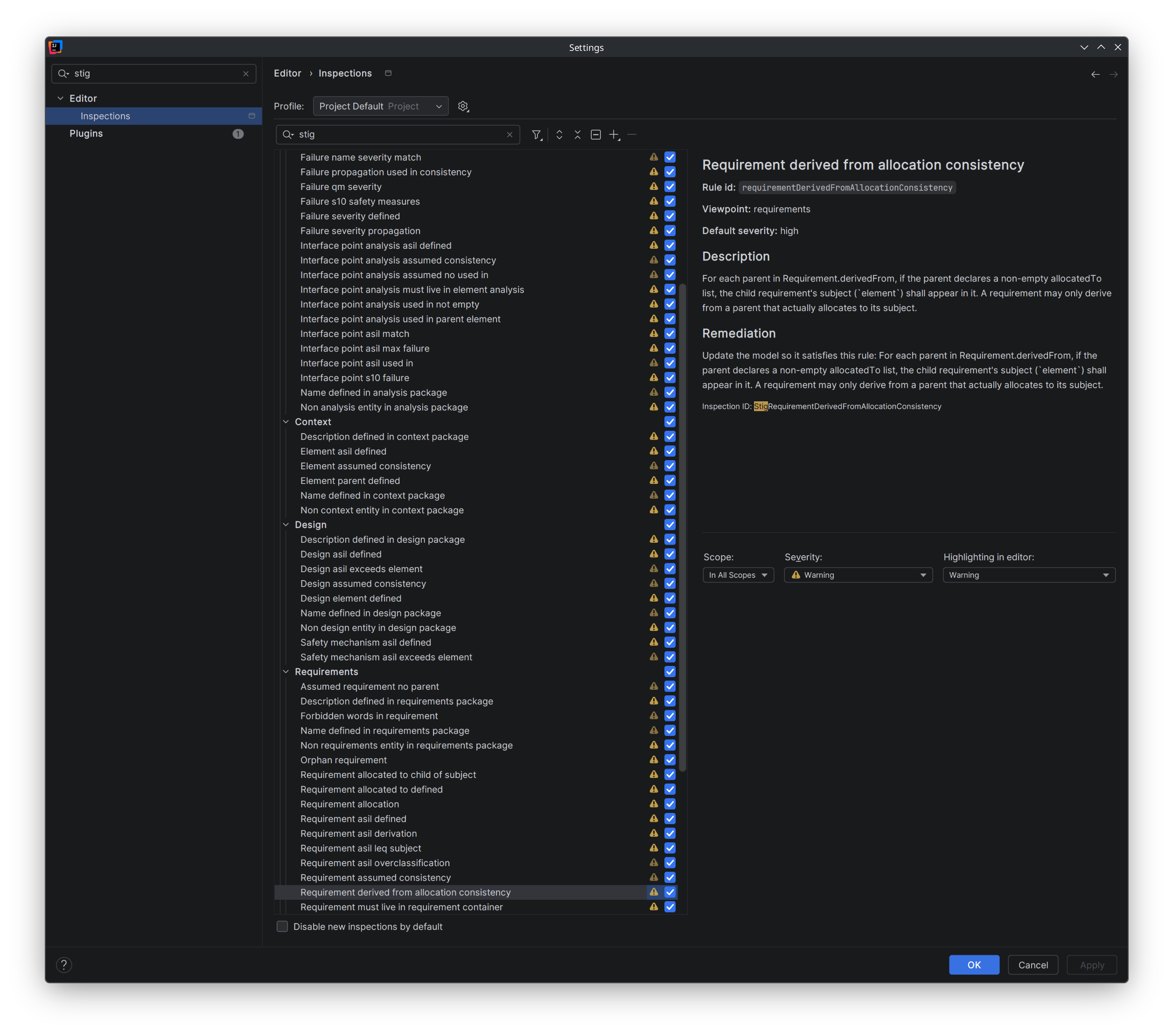
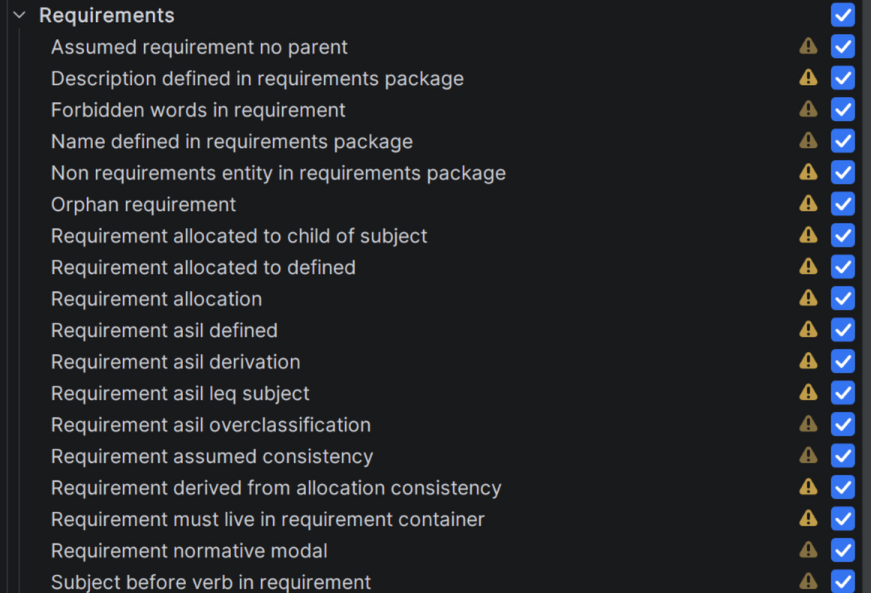
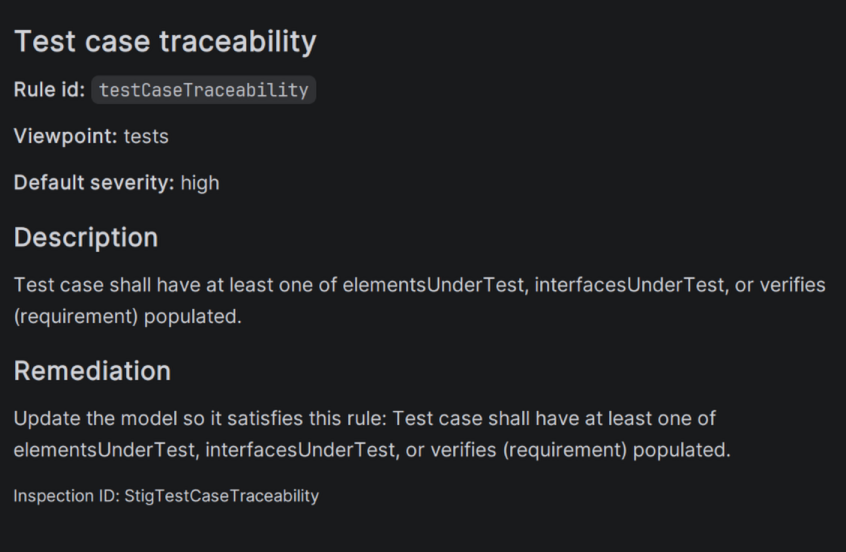
Search for STIG in IDEA's inspection settings to see the generated executable-rule catalog. Each inspection is selectable and grouped by CREATE viewpoint. The full model-rule catalog also contains semantic contracts for human or AI review; these do not run as live inspections.
Understand a finding where you work
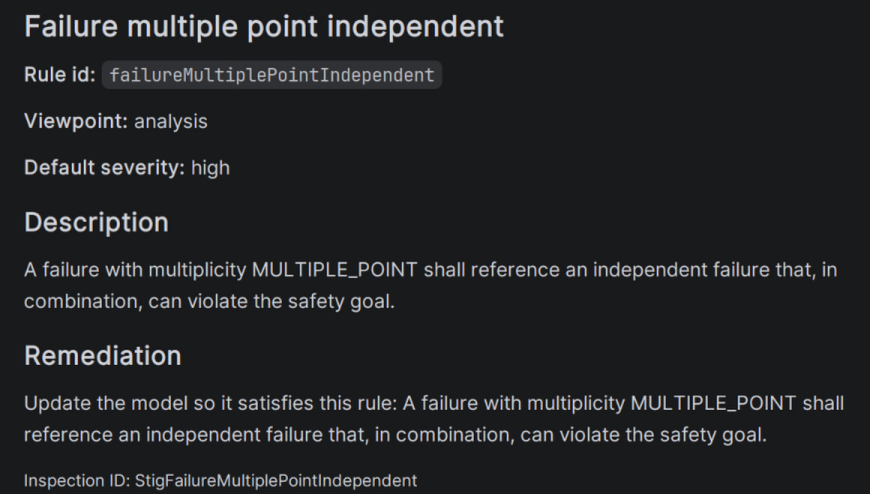
Hover a highlighted declaration name to read the Issue and its specific Remediation, with a link to the version-matched Rule description. Corrections already computed by Kotlin, such as the required ASIL value, appear directly in the remediation. Executable corrections remain available through IDEA's standard quick fixes. The native inspection help and generated documentation reuse the same Kotlin rule definitions; there is no separate STIG explanation dialog.
Run Inspect Code and select a finding in the Problems tool window for a persistent details pane. Its result tree keeps a short issue summary, while the details include the remediation and rule information. The Current File tab instead uses IDEA's editor preview; it is not the SARIF report view. SARIF exports include the same computed remediation in the finding message for report viewers.
For missing incoming usedIn or propagatesTo contributions, remediation lists the Design-declared children and their Analysis declarations, including the available interface-point analyses and failures. It flags completely missing or disabled Analyses and identifies the permitted one-level bypass. Choose one or several contributions supported by the analysis; the list does not require every child to contribute.
The current file selects its entire Kotlin module and directly connected models, across all CREATE viewpoints. These provide the context for the module's executable rules, including parent requirements, analyses, and tests. Results are displayed beside their declarations in the inspected file. Context and rule results are reused across files and invalidated by relevant source or module changes.
Allocations locate child specification modules even when the children only import the parent. Incoming analysis rules check that allocated set in the editor too. An unsupported model expression produces a loading diagnostic. See Model-check context.
Model strings support the standard Kotlin trimIndent() and trimMargin() operations, including a literal custom margin prefix. The loader does not execute consumer functions to calculate string values or prefixes.
Keep allocation and verification connected
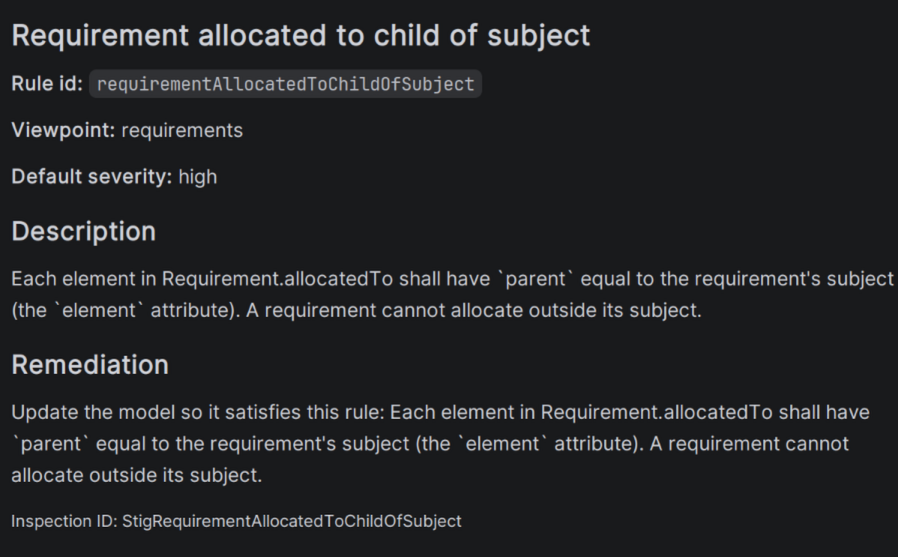
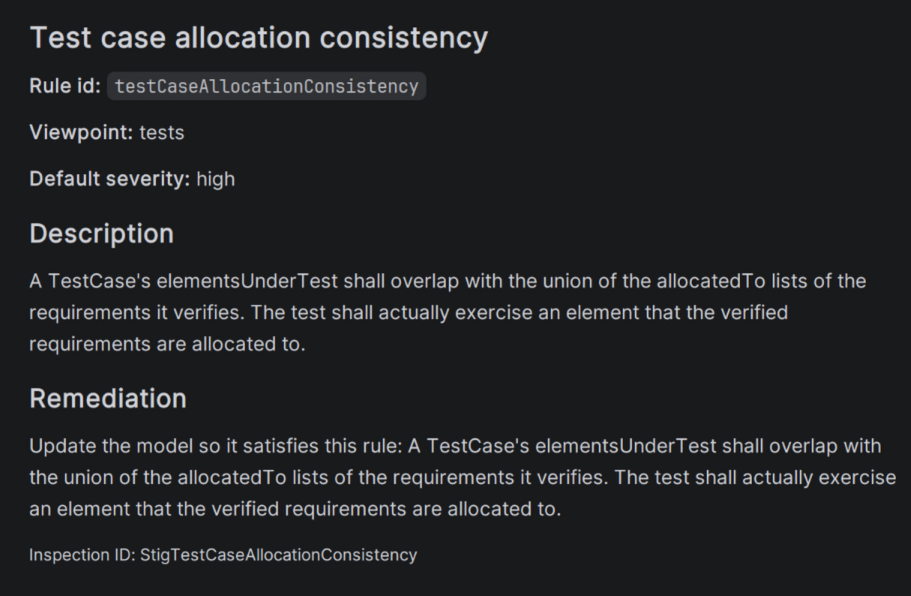
STIG checks whether requirements are allocated within the correct element hierarchy, whether a test declares what it verifies, and whether the exercised elements overlap the allocation of those requirements.
Diagnose a plugin failure
The model editor shows an animated progress bar, elapsed time and the current loading operation, including source discovery, Kotlin declarations, references, rules and editor preparation. Counts apply to the current operation. Choose Cancel to stop loading or Retry to start again. Repeated reads reuse the detached editor snapshot until the model sources or project structure change.
The hierarchy indents failures beneath their interface-point analysis. Attribute values and editable choices use the same badge labels, palettes and SVG artwork as the HTML report, including ASIL decomposition, severity effects, multiplicity, failure evaluation and boolean values. ASIL colours come from the existing shared ASILPalette.
Limited checks means that some declarations or checks could not be loaded. The editor displays the available model and labels its findings accordingly; an empty findings list does not establish that the unavailable checks passed. Choose Show problem details for the affected declarations, constructor parameters and expressions. Resolve Kotlin errors in Code and reload Gradle after dependency changes, then retry loading.
Choose Show STIG problem details on an inspection failure to open a large, resizable window. Copy diagnostics copies the complete report, including the failed operation, STIG plugin and imported library versions, IDEA and Kotlin plugin versions, Java, module import metadata, class origins and the complete exception. The window remembers its size. Diagnostic suggestions distinguish observed version or library differences from possible causes. They do not claim that the plugin is outdated or that Gradle import failed without that evidence.
Report Plugin Problem… records the diagnostics as a STIG plugin error and explains how to open IDEA's native error indicator. Use this when a loading diagnostic appears to be a plugin defect. Review the attachment before submitting through Report to third-party plugin.
Unexpected internal failures also appear in IDEA's standard error indicator with a stig-diagnostics.txt attachment. This includes unexpected failures while loading or preparing edits in the model editor. Incomplete model input is displayed as a loading diagnostic and is not automatically reported as an internal exception. Repeated identical failures are deduplicated. Review the report and attachments in the IDE Internal Errors dialog, then choose Report to third-party plugin. Reports go to the STIG plugin's Exceptions tab on JetBrains Marketplace; IDE versions supporting automatic reports follow the user's IDEA reporting settings. See JetBrains Marketplace error reporting.
Before retrying, check IDEA updates through Help → Check for Updates, check STIG updates in Settings → Plugins, and reload the Gradle project after dependency changes. The diagnostic report records installed versions; it does not query the latest release or run a Gradle import.
Continue with the model
Learn the CREATE viewpoints and author specifications with CREATE.
Open the generated model-rule catalog for the complete version-specific rule set.